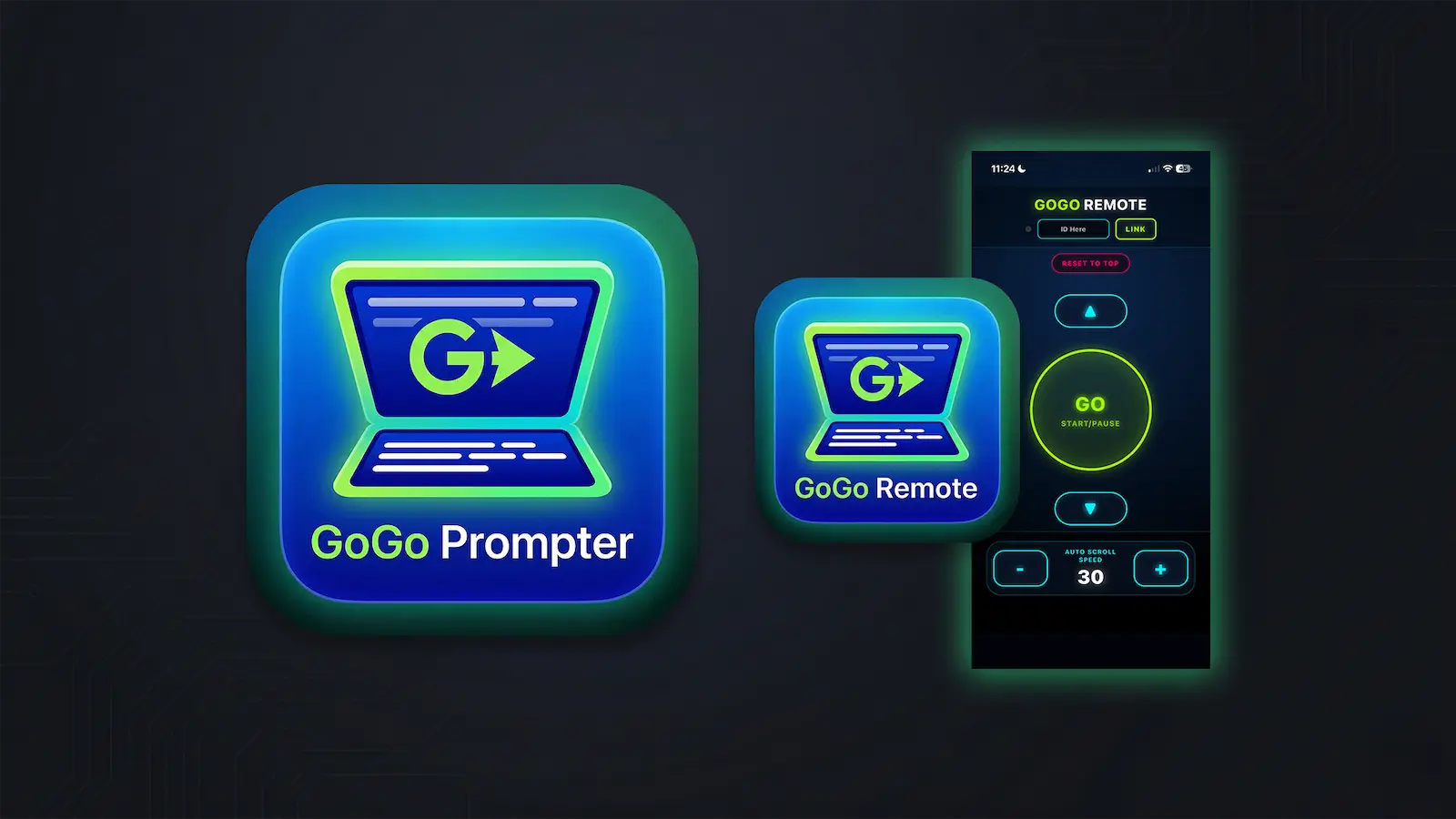
Welcome to GoGo Prompter, the professional, zero-subscription teleprompter built entirely in your browser. Whether you are recording YouTube videos, delivering a live keynote, or managing talent in a studio, GoGo Prompter gives you flawless scrolling with total privacy.
App Purpose & Compatibility
GoGo Prompter is designed to replace expensive, hardware-locked software. Because it is completely browser-based, there is nothing to download or update. It works seamlessly across almost all modern devices, including:
- Windows & Mac desktop computers (via Chrome, Edge, Safari, Firefox)
- iPads and Android Tablets
- Smartphones (used either as the prompter screen or as a wireless remote)
Activating Your License
Before you can use the prompter, you must install your lifetime license key.
- Navigate to My Toolbox.
- Paste the License Key you received in your email from LemonSqueezy.
- Click Save. GoGo Prompter is now unlocked on your current browser.
The Editor Window
When you open GoGo Prompter, you will be greeted by the Editor Window. This is your staging area. Here, you can type your script directly into the text field, or paste it from another document.
Upload File
Click the UPLOAD FILE button to quickly import a `.txt` file straight into the editor.
Save File
Click the SAVE FILE button to export your current script back to your computer for safekeeping.
The Prompter Window
Once your script is ready, look to the top right corner of the Editor Window and click the green OPEN PROMPTER button. This will switch you into presentation mode.
The Prompter Window features a floating menu that gives you total control over the reading experience:
- Prompter Mode: Switch between the four different scrolling behaviors based on your needs (see the breakdown below).
- Reset: Instantly jump the script back to the very top.
- Typography: Change the font type and adjust the font size for readability.
- Mirror Icon: Click the icon with two arrows facing opposite directions to flip the text horizontally. This is required if you are placing your screen under a physical teleprompter glass rig.
- Hide Menu: Collapses the settings panel for a perfectly clear, distraction-free screen.
Prompter Modes Breakdown
GoGo Prompter offers four distinct modes for delivering your script. You can switch between these at any time via the Prompter Window menu.
| Mode | Description |
|---|---|
| Manual | Scroll the code under manual control. This is incredibly handy if two people are working together with synced devices, allowing a producer to scroll the script for the talent. |
| Auto Scroll | Set the scroll pace manually, and your script will simply move at a constant, even pace until it reaches the last line. |
| Timer | Set a target duration. The prompter will automatically calculate the required scroll speed so that the script moves from start to finish in the exact allotted time. |
| Active Listening | Use a microphone to listen to your voice. The script will move along with your natural pace. Click or tap anywhere in the script to set a new start point if you need to jump around. |
Syncing Devices (The Wireless Remote)
One of the most powerful features of GoGo Prompter is the ability to use a second device (like your smartphone) as a wireless remote control. You don't need bluetooth or shared Wi-Fi networks.
- On your main display (the screen showing the script), look for the Sync Devices box above the text editor.
- You will see a 6-digit code listed next to My ID. This is your main display's unique routing code.
- Open the GoGo Prompter web app (or the GoGo Remote) on your second device.
- Read the My ID code from the second device, and type it into the Link To box on your main display.
- Click CONNECT. The app will flash a notification that the connection is online!
Note: For security and stability, only one remote device can be connected to the main prompter at a time.
Get the GoGo Remote App
For the best remote control experience, we highly recommend installing the GoGo Remote Progressive Web App (PWA) directly to your smartphone's home screen. The PWA is fully compatible with both iOS and Android devices, giving you a native app feel in seconds. To learn how to install it, read our PWA Installation Guide here.